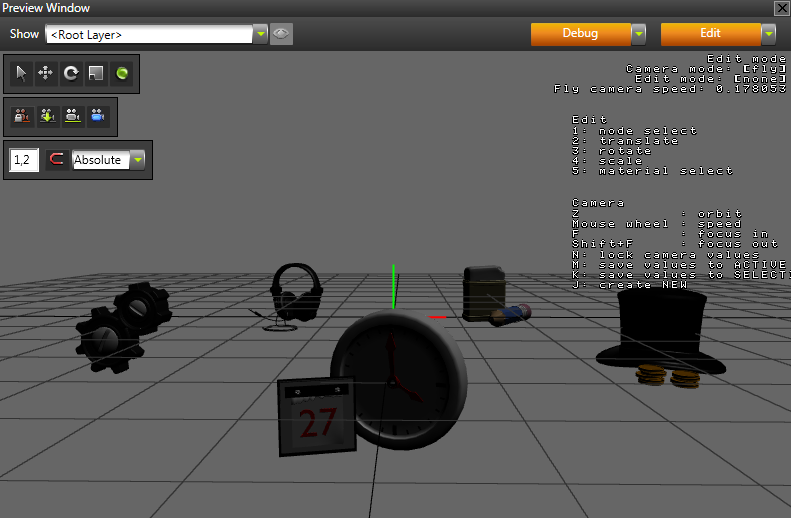
When you move around the scene in the Edit mode you are using the free camera and not any of the cameras in the scene.
To undo the change of position, click Edit to exit the Edit mode.
Use these free camera controls to move around in the Preview.
| Control | Description |
|---|---|
| W | Move forward. Hold down Shift to double the speed. |
| S | Move backward. Hold down Shift to double the speed. |
| A | Move left. Hold down Shift to double the speed. |
| D | Move right. Hold down Shift to double the speed. |
| Q | Tilt left. |
| E | Tilt right. |
| Click and drag the left mouse button | Rotate |
| Click and drag the right mouse button | Pan |
| Mouse scroll wheel | Set camera speed. |
| Hold down Z | Activate the orbit camera. Use the orbit camera to rotate around the center point of the Preview. |
| Hold down Z and mouse scroll wheel | Zoom |
| F | Focus on the object selected in the Project. |
| Shift+F | After focusing on the object selected in the Project, focus out. |
 in the Preview, to save the values of the free camera to the camera in your scene.